Add new Android Zero-Touch profile
- Go to Settings > Android Settings > Zero-Touch Profiles.
- Click Add New.
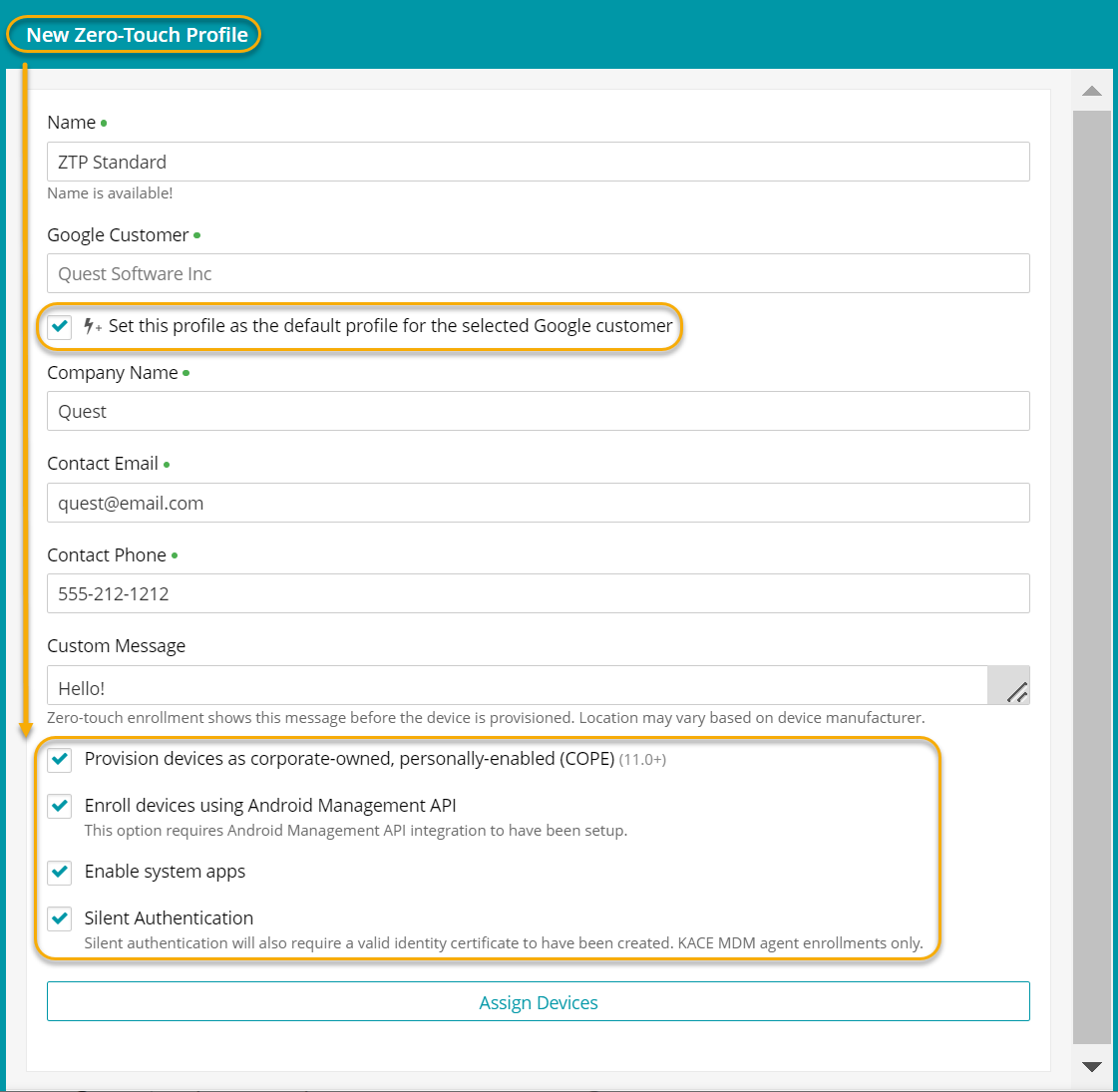
- Name and fill out details for the new profile.

- You may choose to set this profile as the default for all new devices.
- You may choose to provision devices as corporate-owned, personally-enabled (COPE).
- Assign devices.
- You may assign devices during the add profile process, or do so later.
- Optional, EMM enrollments only. If you want to enable silent authentication, ensure that the Silent Authentication check box is selected. For more information, see Configure silent authentication.
- AMAPI enrollments only. Select Enroll devices using Android Management API (AMAPI). To use this option, you must first configure AMAPI enrollments in the Google Console and KACE Cloud. For details, see Enrolling Android devices.
- Click Save.
|
|
|